MCP Server
Create and manage LEIA courses conversationally from Claude Desktop, Codex, Cursor, Pi, or any MCP-compatible AI assistant.
The LEIA MCP Server connects your AI assistant directly to LEIA's course creation platform. Instead of writing code or clicking through dashboards, you describe the course you want in plain language and your AI agent handles the rest — parsing, curriculum design, content generation, and more.
How it works
You talk to your AI assistant. It talks to LEIA. Courses get built.
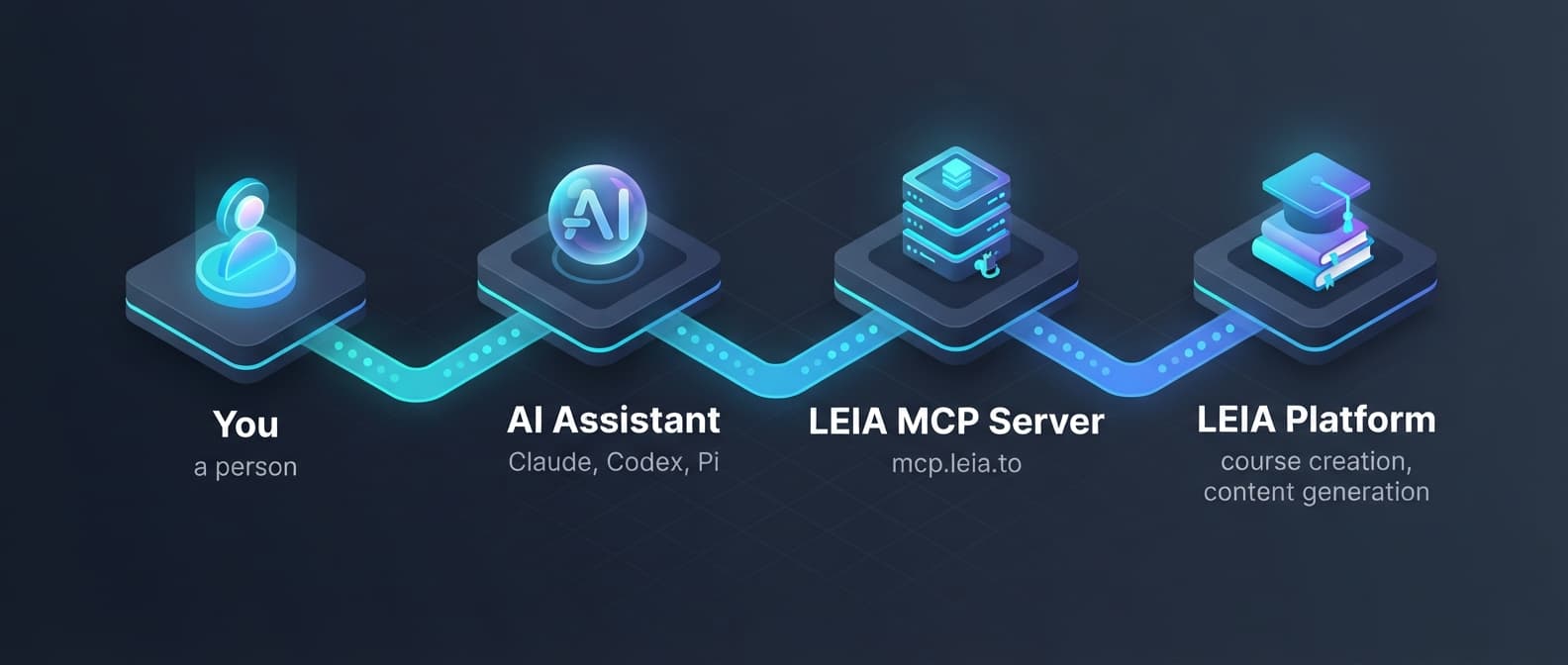
The LEIA MCP server gives your AI assistant 15 tools it can use — from parsing a course description to generating full lesson content, creating slides, uploading reference documents, and checking your credit balance.
Prerequisites
You need a LEIA API key to authenticate. Keys look like leia_sk_... and require an active Business subscription. The fastest way to get set up is the in-app wizard (below); you can also create a key manually from your LEIA Creator Dashboard under Workspace → API Keys.
Quick setup (recommended)
In your LEIA Creator Dashboard, go to Workspace → MCP Setup. From there you can:
- Create or paste an API key — the wizard generates one and shows it once.
- Copy a ready-made config for Claude Code, Claude Desktop, Cursor, or VS Code — the endpoint and Bearer header are filled in for you.
- One-click install — for Cursor and VS Code, click Add to Cursor / Add to VS Code and the server is registered automatically.
If you prefer to configure clients by hand, use the per-host instructions below.
Connecting your AI assistant
Point any MCP-compatible tool at https://mcp.leia.to/mcp with your API key as a Bearer token header.
Claude Code
Add the server with a single command:
claude mcp add --transport http leia https://mcp.leia.to/mcp --header "Authorization: Bearer leia_sk_YOUR_KEY"Claude Desktop
Claude Desktop only speaks local stdio, so an HTTP server like LEIA has to be bridged with mcp-remote. Make sure Node.js (which provides npx) is installed, then open Settings → Developer → Edit Config and add:
{
  "mcpServers": {
    "leia": {
      "command": "npx",
      "args": [
        "mcp-remote",
        "https://mcp.leia.to/mcp",
        "--header",
        "Authorization:${AUTH_HEADER}"
      ],
      "env": {
        "AUTH_HEADER": "Bearer leia_sk_YOUR_KEY"
      }
    }
  }
}
The header value lives in env and is referenced as Authorization:${AUTH_HEADER} (no space after the colon) to avoid an arg-parsing bug on Windows. Save the file and restart Claude Desktop — you'll see a 🔌 icon with LEIA tools available.
Codex
Open Settings → MCP Servers and add a new HTTP server:
- Name: LEIA
- URL:
https://mcp.leia.to/mcp - Header:
Authorization: Bearer leia_sk_YOUR_KEY
Codex will automatically discover the available tools.
Cursor
Open Settings → Features → MCP and add:
{
  "mcpServers": {
    "leia": {
      "type": "http",
      "url": "https://mcp.leia.to/mcp",
      "headers": {
        "Authorization": "Bearer leia_sk_YOUR_KEY"
      }
    }
  }
}
Pi
Add the MCP server from the MCP gateway panel:
- Transport: Streamable HTTP
- URL:
https://mcp.leia.to/mcp - Headers:
Authorization: Bearer leia_sk_YOUR_KEY
VS Code
The easiest way is the Add to VS Code button in Workspace → MCP Setup. To configure manually, add this to your .vscode/mcp.json:
{
  "servers": {
    "leia": {
      "type": "http",
      "url": "https://mcp.leia.to/mcp",
      "headers": {
        "Authorization": "Bearer leia_sk_YOUR_KEY"
      }
    }
  }
}
LEIA authenticates with your static Bearer key, so no OAuth sign-in is required — VS Code connects using the header directly.
Other MCP clients
Any MCP-compatible client can connect using the Streamable HTTP transport:
- URL:
https://mcp.leia.to/mcp - Auth header:
Authorization: Bearer leia_sk_YOUR_KEY - Protocol:
2024-11-05
The server auto-negotiates JSON responses for tool calls.
What you can do
Once connected, your AI assistant gains 15 specialized tools for building courses end-to-end.
The core workflow
Building a course follows five steps. Your AI assistant handles each one — you just describe what you want.
| Step | Tool | What happens |
|---|---|---|
| 1. Describe | parse_description | Turn your course idea into structured data (title, audience, difficulty, objectives) |
| 2. Design | start_curriculum | AI generates a full curriculum with modules and lessons |
| 3. Review & create | check_curriculum → create_course | Review the curriculum, then create the course on LEIA |
| 4. Generate content | generate_lessons | AI writes full lecture content, quizzes, and exercises |
| 5. Wait for completion | wait_for_job | Blocks until generation finishes, so your assistant keeps working instead of stopping to "check back later" |
Curriculum design and lesson generation run asynchronously and can take several minutes. wait_for_job long-polls the job on the server and streams progress back to your assistant, so a single call can cover the whole run — your assistant stays on task and reports back only when the work is done (or hands you a clear resume step if it needs another turn).
Additional capabilities
| Tool | What it does |
|---|---|
get_course | Look up any course by ID or slug |
generate_slides | Create presentation slides for lessons (4 visual styles) |
export_pdf | Export lessons as downloadable PDF |
delete_course | Remove a course permanently |
upload_rag_document | Upload PDFs, docs, or text files as reference material for your course |
check_rag_status | Monitor document processing for RAG-based courses |
check_job | Get a one-shot status snapshot of any job |
cancel_job | Stop a running generation job |
get_credit_balance | Check how many credits you have before generating |
Slide templates
When generating slides, you can choose from four visual styles:
- Whiteboard — Hand-drawn chalkboard aesthetic
- Flat Illustration Corporate — Clean, professional vector art
- Doodle Notebook — Playful sketch-style illustrations
- Handwritten Chalk Casual — Relaxed handwritten look
RAG — Ground courses in your documents
Upload your own PDFs, Word documents, or text files and LEIA will use them as source material for course generation. Your AI assistant will:
- Upload your document via
upload_rag_document - Wait for processing via
check_rag_status - Thread the document through the entire course creation flow so your material grounds every lesson
Supported formats: PDF, DOCX, XLSX, TXT, Markdown, HTML, CSV, RTF (up to 100MB each).
Credits
Every course costs credits to generate. Before starting a large course, your AI assistant can check your balance. A typical 9-lesson course uses around 450 credits. Check yours any time:
"How many LEIA credits do I have?" → your AI calls
get_credit_balance
Example prompts
Here's what asking your AI assistant looks like after connecting LEIA:
Create a course from scratch
"Create a comprehensive course on World War II. Cover the causes, major battles in Europe and the Pacific, key leaders, and the aftermath. Make it 9 lessons total with a conversational tone for beginners."
Create a short course
"Build a beginner course called 'Python for Data Analysis' with 5 lessons. Focus on pandas, matplotlib, and real-world datasets. Include exercises and quizzes."
Ground a course in your documents
"I have a company training manual at https://example.com/handbook.pdf. Use it to create an onboarding course for new hires with 6 lessons."
Generate slides
"Take my course 'Intro to Machine Learning' (slug: intro-to-ml) and generate whiteboard-style slides for all lessons."
Export to PDF
"Export my World War II course to PDF — all lecture lessons."
Korean, Japanese, and beyond
"한국어로 SQL 기초 과정을 만들어줘. 4개의 모듈, 8개의 레슨으로 구성해줘."
"SQLの基礎コースを日本語で作成してください。実践的な演習を含めてください。"
Multilingual courses are supported — just specify the language in your prompt.
Tips for best results
- Be specific about scope — Say "3 modules with 3 lessons each" instead of "a short course"
- Describe your audience — Mention if it's for beginners, professionals, students, etc.
- Set the tone — Choose from conversational, casual, or formal
- Check credits first — Ask "How many credits do I have?" before generating a large course
- Review the curriculum — Your AI will show you the generated curriculum before creating the course. You can ask for adjustments
- Upload documents early — If using RAG, upload reference documents before starting curriculum generation